GUIDE
How to Use Contractor Job Hub
A complete walkthrough of the app, from setting up your business to getting paid, based on exactly how Contractor Job Hub works today.
On this page
- Setting Up Your Business
- Locking the App
- Building Your Price List
- Adding Customers
- Sending a Quote
- Managing a Quote
- Scheduling and Running the Job
- Invoicing and Getting Paid
- Your Daily Dashboard: the Schedule Tab
- Managing Your Crew and Payroll
- Notifications and Reminders
- Backing Up and Moving Your Data
- Saving Time with Note Templates
- Status Colors at a Glance
- Good to Know
Setting Up Your Business
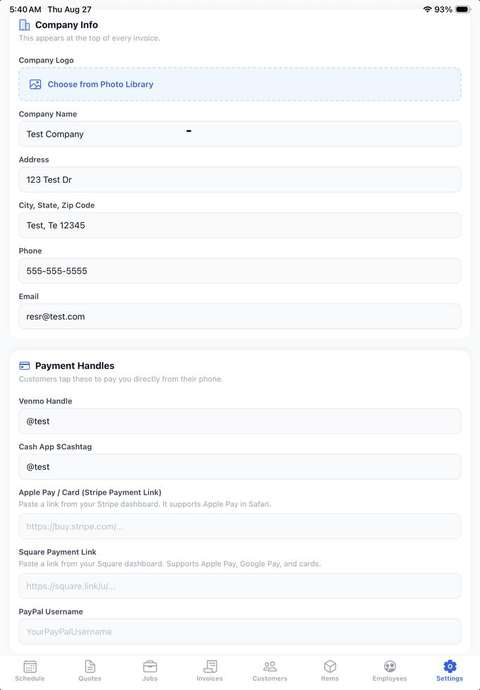
Start in the Settings tab. This is where your company info and payment options live, and it only takes a minute.
- Company Info. Add your company logo (under 2MB), business name, address, phone, and email. This information appears at the top of every quote and invoice you send.
- Payment Handles. Add the payment links and handles you already use: Venmo, Cash App, a Stripe payment link, a Square payment link, and your PayPal username. Once these are saved, you can text or email a customer a direct pay link straight from an invoice.
- Tap Save Settings when you’re done.
Locking the App
Contractor Job Hub can require Face ID, Touch ID, or a fingerprint before it opens — handy if your phone is ever handed to a customer or left on a truck seat.
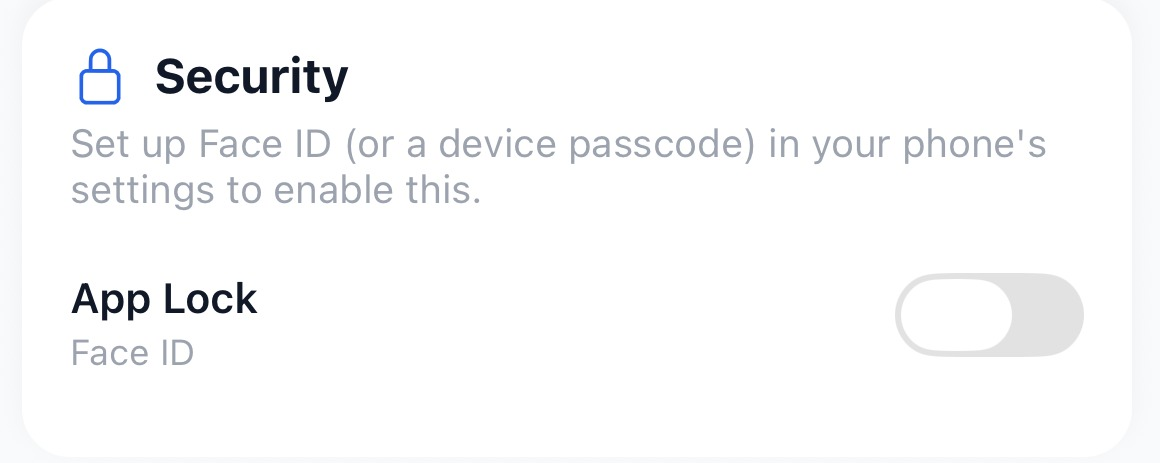
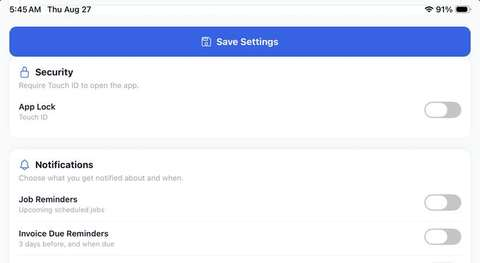
- In Settings, under Security, flip the App Lock toggle. Its label names the exact method your device supports (Face ID, Touch ID, Fingerprint, or a generic Biometric Login).
- Turning it on immediately asks you to confirm with your biometrics before the toggle switches on.
- Once enabled, the app locks itself whenever it goes to the background, and shows a lock screen with an Unlock button when you come back to it.
- If your device’s biometrics are ever removed, App Lock turns itself back off rather than locking you out for good. It also has no effect when Contractor Job Hub is running in a web browser.
Building Your Price List
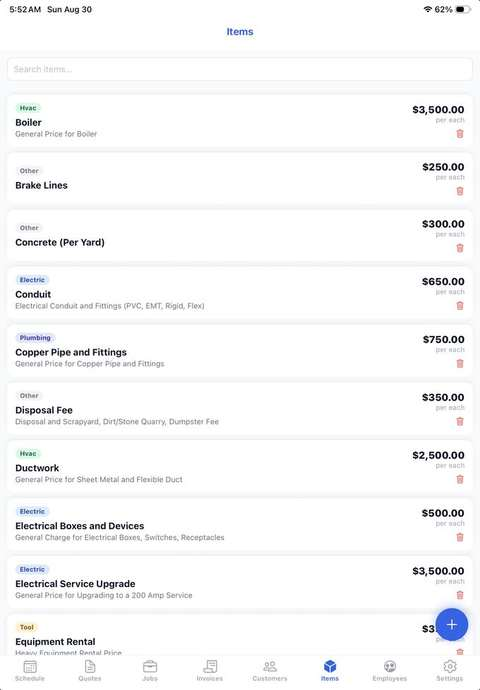
The Items tab is your price book: a running list of the parts, materials, tools, and labor you charge for, so you’re not retyping the same line every time you write a quote.
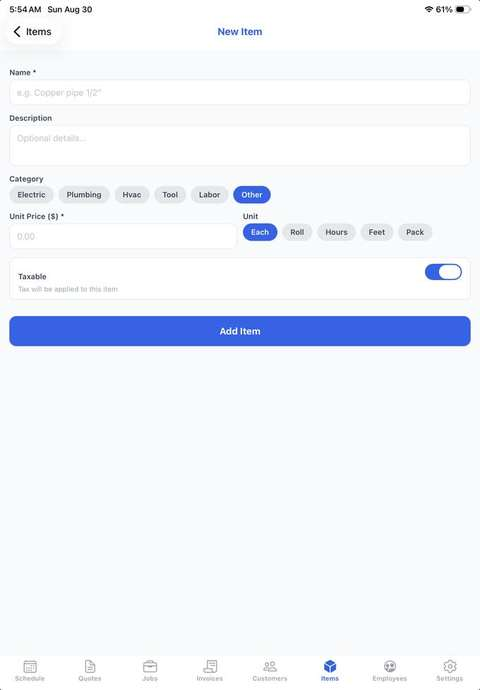
- Tap the + button to add an item. Give it a name, an optional description, a category (Electric, Plumbing, HVAC, Tool, Labor, or Other), a unit price, a unit of measure (Each, Roll, Hours, Feet, or Pack), and whether it’s taxable.
- Search your catalog any time from the Items tab, and pull items straight into a quote, job, or invoice with Add from Catalog instead of typing them again.
- Adding a catalog item to a quote or job bumps its quantity by one if it’s already on the list, instead of adding a duplicate line. On invoices, adding the same item again always adds a new line.
Adding Customers
Every job, quote, and invoice is tied to a customer, so this is usually your next stop.
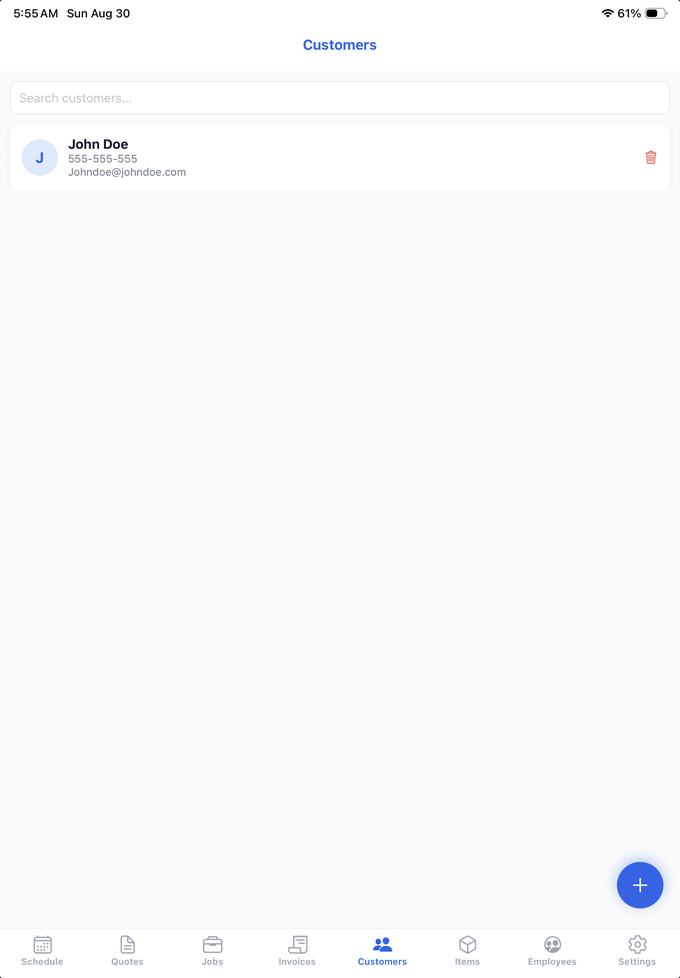
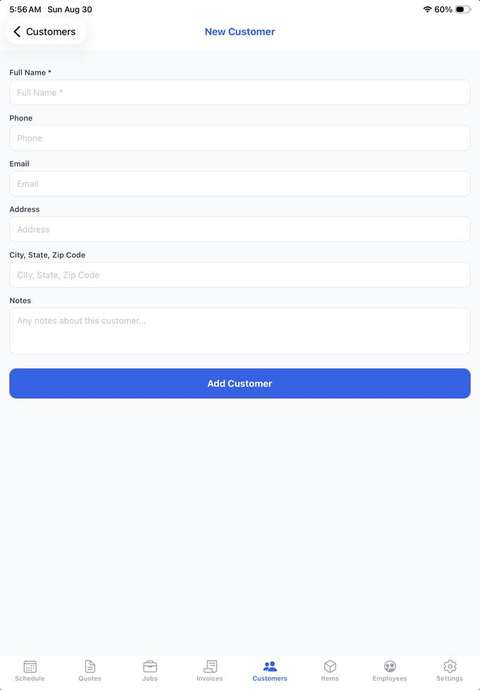
- From the Customers tab, tap + to add a name (required), phone, email, address, and any notes.
- Once a customer is saved, tap their phone number to call or text them, tap their email to open it in Mail, or tap their address to open it in Maps, all right from their profile.
- A customer’s profile also shows every job, quote, and invoice tied to them, so you can see their whole history in one place.
- Careful: deleting a customer permanently deletes all of their jobs, quotes, and invoices too. There’s no undo.
Sending a Quote
When someone wants a price before you start, build a quote.
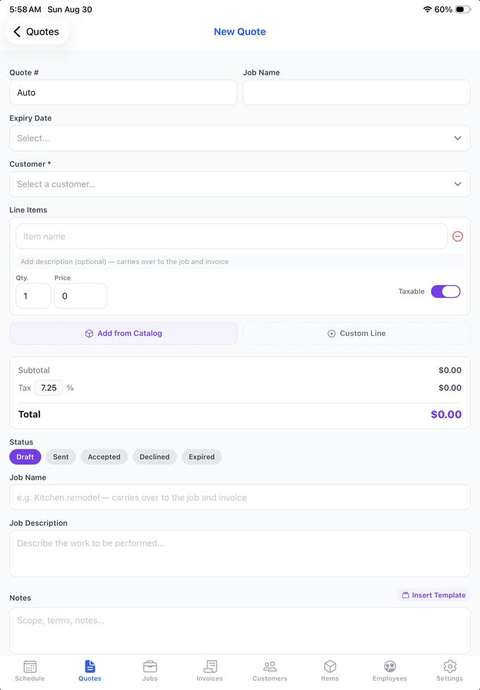
- Tap + in the Quotes tab, choose a customer, and add your line items, either from your catalog or typed in fresh. Set your tax rate (7.25% by default, editable any time) and mark any line items that shouldn’t be taxed.
- Add a job name and description so it’s clear what you’re quoting, and use Notes for scope details or payment terms. Save a note as a reusable template with Insert Template so you don’t have to type it again next time.
- Attach photos, job expenses, or documents (PDFs only) if you have them, then set an expiry date (15, 30, 45, 60, or 90 days, or a custom date) so the customer knows how long the price is good for.
- Tap Send on the quote to open the share sheet, where you can print it, save or share it as a PDF, email it, or text it straight to the customer.
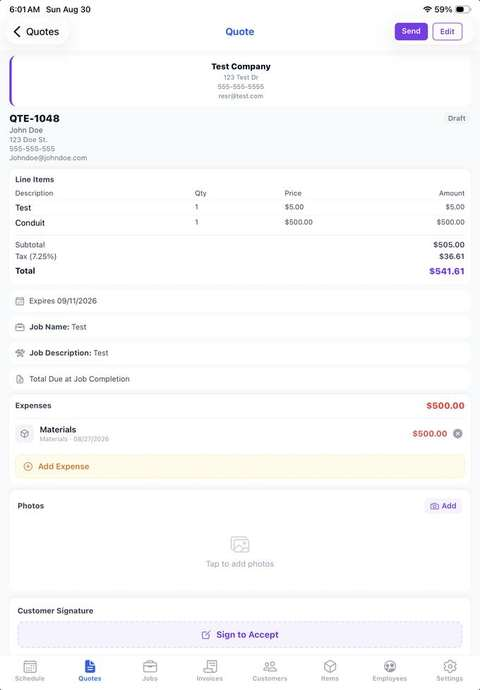
- When the customer is ready to accept, open the quote and tap Sign to Accept. They can sign right on your phone or tablet with a finger, and the quote is marked Accepted automatically.
- Only a successfully sent email or text message automatically marks the quote Sent — printing or saving the PDF doesn’t change its status.
Managing a Quote
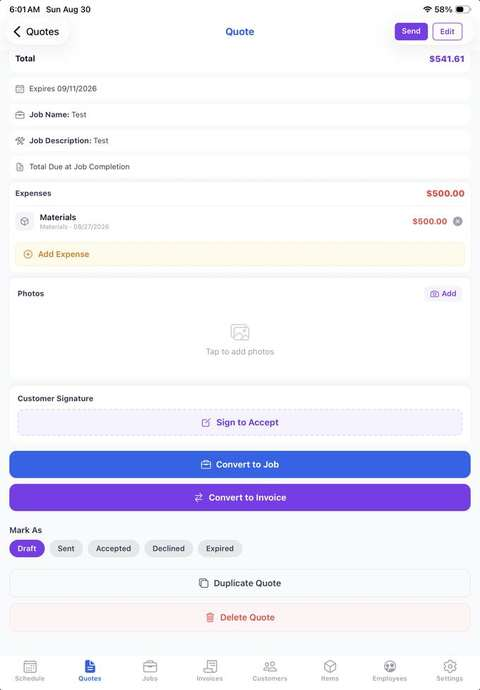
The quote’s detail screen is where you manage it after it’s sent — convert it, duplicate it, or set its status by hand.
- Tap Convert to Job to carry the customer, line items, and notes into a new job, ready to be scheduled.
- Or tap Convert to Invoice to skip straight to billing, if there’s no separate job to schedule.
- Either button can only be used once per quote. If you need to redo it, delete the job or invoice it created first.
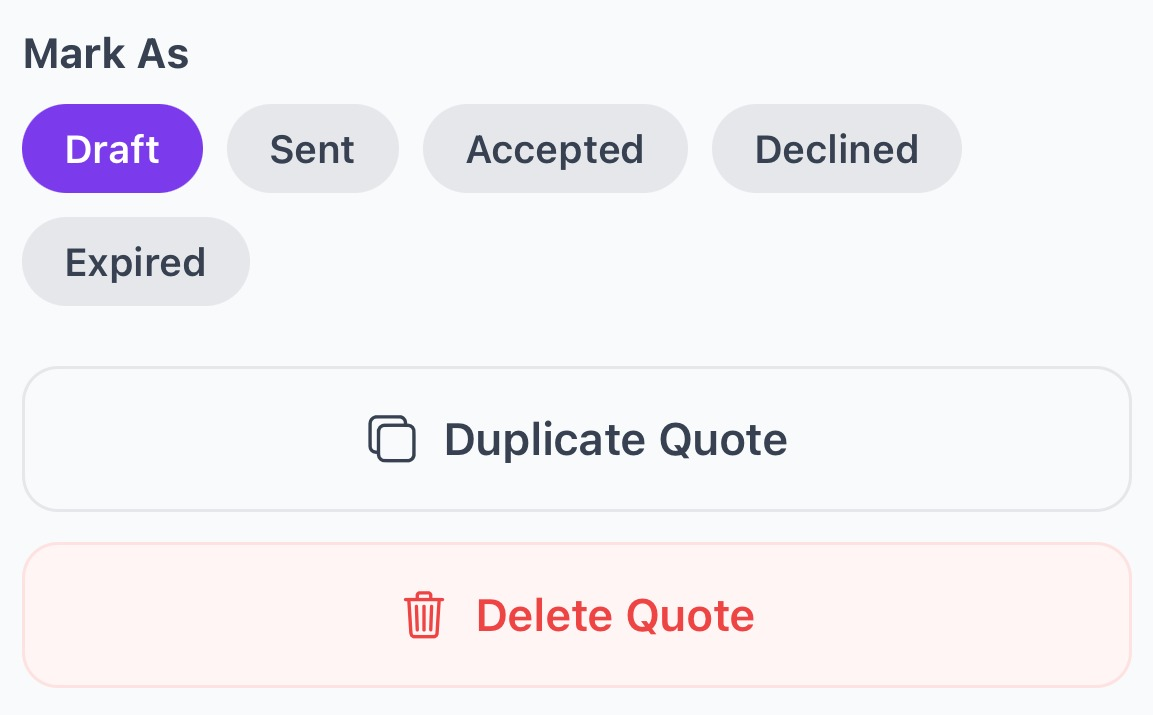
- Duplicate Quote starts a brand-new quote pre-filled with the same customer, line items, tax rate, job name and description, and notes — everything else (expiry, status, photos, expenses, signature) starts fresh.
- You can set a quote’s status by hand at any time (Draft, Sent, Accepted, Declined, Expired). Contractor Job Hub also checks itself: any quote whose expiry date has passed and hasn’t been Accepted or Declined is automatically flipped to Expired.
- Delete Quote permanently removes the quote along with any of its photos, receipts, and documents. There’s no undo.
Scheduling and Running the Job
The Jobs tab is where the actual work lives, from the first scheduled date to the final photo.
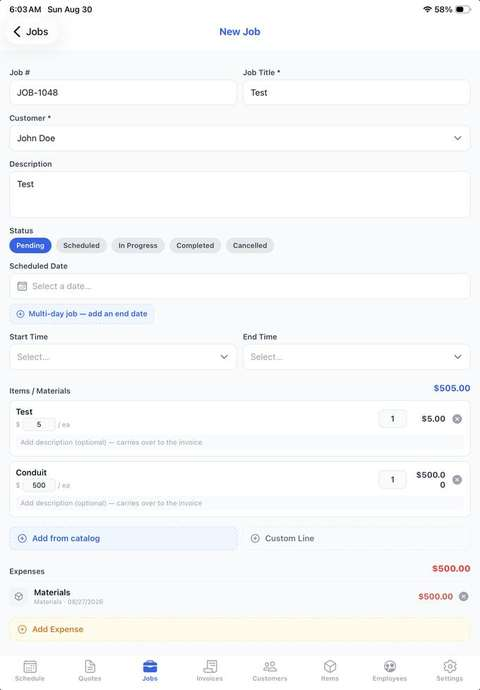
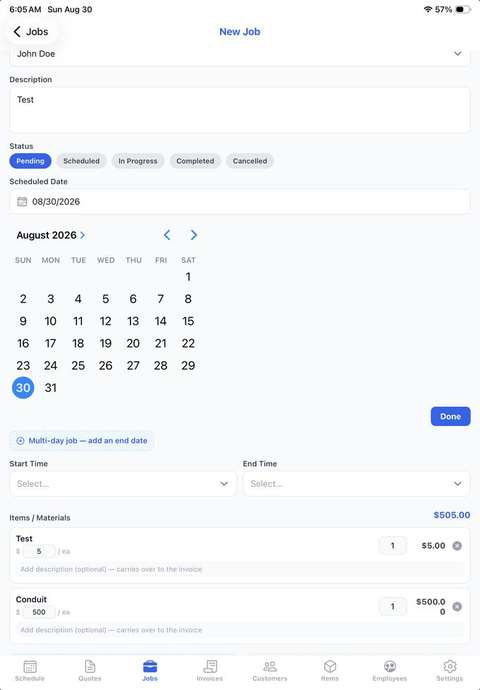
- Set a scheduled date and start and end time, and the job automatically moves from Pending to Scheduled. For jobs that run more than one day, add an end date and, if needed, set different hours for each individual day.
- If you’re double-booking a time slot or a day that already has a job on it, Contractor Job Hub warns you before you save, though it won’t stop you.
- As you work, add materials and labor from your price list, log expenses (with a photo of the receipt if you want), and take before and after photos, labeling each one so your documentation stays organized.
- Mark a job Completed or Cancelled when it’s done, or Reopen Job if you need to go back to it. Duplicate Job is a shortcut for repeat work: it copies the customer, description, and line items into a fresh job without the old schedule or photos.
- Need money up front? Request Deposit creates a separate deposit invoice for a percentage or flat amount, before the job is even finished.
Invoicing and Getting Paid
Once a job is complete, billing it takes one tap.
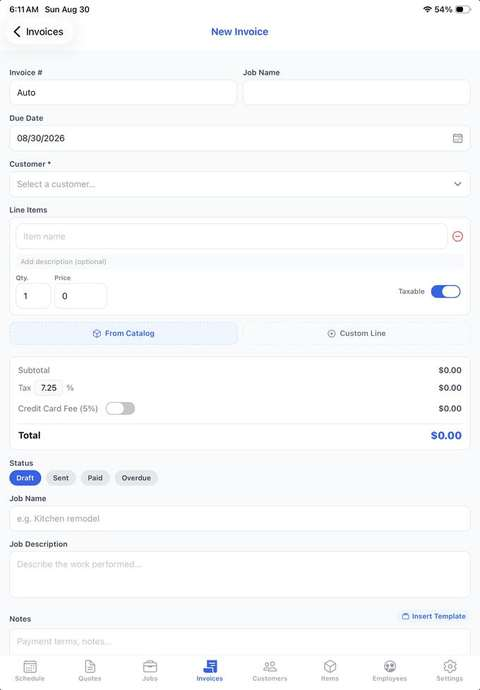
- From the job, tap Create Invoice from Job to carry over every line item, along with the job’s notes and any deposit already paid. Or start an invoice from scratch in the Invoices tab.
- Set a due date, confirm your line items and tax, and turn on the Credit Card Fee toggle if you want to pass along a 5% card processing fee.
- Tap Send to share the invoice the same way you’d share a quote: print, PDF, email, or text.
- To collect payment, tap Request Payment and choose Venmo, Apple Pay/Card (Stripe), Square, or PayPal. Contractor Job Hub builds a direct pay link using the handle you saved in Settings, and hands it to your share sheet so you can text or email it straight to the customer.
- When money comes in, whether through one of those links, a check, or cash, tap Record Payment and log the amount and method (Venmo, Cash App, Stripe, Square, PayPal, Zelle, Cash, Check, or Other). Partial payments are tracked automatically, the invoice shows exactly what’s paid and what’s still due, and it switches to Paid on its own once the balance hits zero.
- Once an invoice is paid, Send Receipt shares a paid version of the document with your customer.
- If the job already has a paid deposit invoice, that amount is automatically credited against the new invoice’s balance as a Deposit Applied line.
- You don’t have to mark anything overdue by hand — once a day, any invoice past its due date that isn’t fully paid (even a still-Draft one) is automatically flipped to Overdue.
Your Daily Dashboard: the Schedule Tab
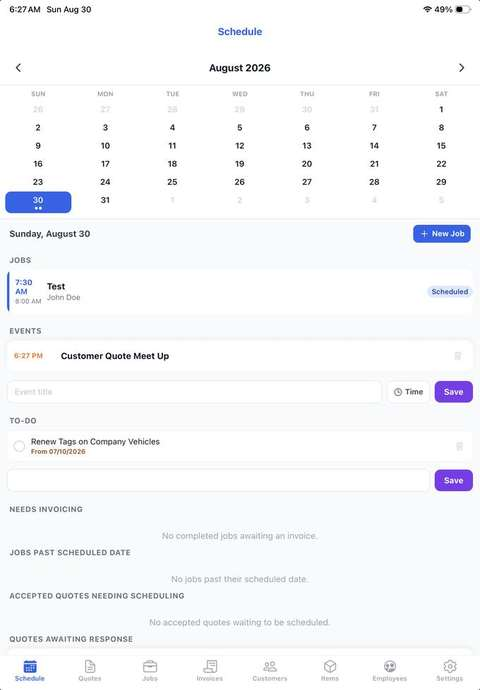
The Schedule tab is more than a calendar, it’s a running list of what needs your attention.
- The monthly calendar shows a colored dot for every job on a given day (color matches its status) and a small square for anything on your to-do list.
- Tap any day to see everything due that day: scheduled jobs, a simple to-do list you can check off, completed jobs that still need to be invoiced, jobs whose scheduled date has already passed, accepted quotes that haven’t been scheduled yet, quotes still waiting on a customer’s response, and invoices that haven’t been paid.
- Unfinished to-dos automatically carry over to the next day until you check them off, so nothing quietly falls through the cracks.
Managing Your Crew and Payroll
If you have employees, the Employees tab keeps their info and hours in one place.
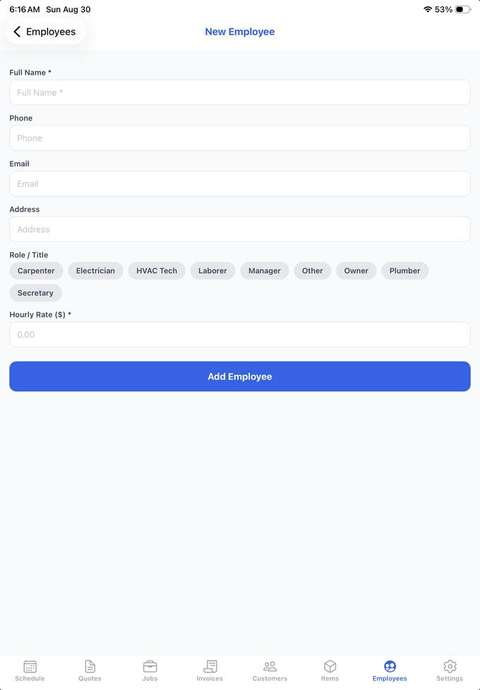
- Add an employee’s name, phone, email, address, role (Carpenter, Electrician, HVAC Tech, Laborer, Manager, Owner, Plumber, Secretary, or Other), and hourly rate.
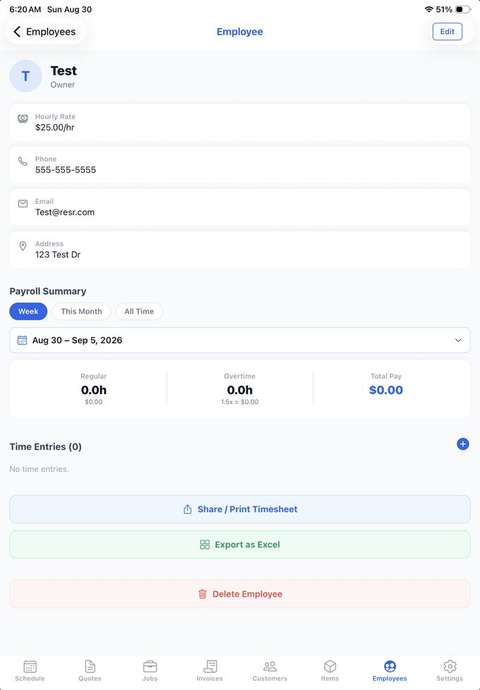
- Time is logged by hand; there’s no clock-in/clock-out timer. Open an employee’s profile and add a time entry with a date, number of hours, and an optional note.
- The Payroll Summary calculates regular and overtime pay automatically. Time worked over 40 hours in a calendar week (Sunday through Saturday) is paid at 1.5 times the hourly rate. View totals by week, month, or all time.
- Share or print a timesheet, or export it as an Excel file, right from the employee’s profile.
- Note: time entries aren’t currently linked to a specific job, they’re tracked per employee only.
Notifications and Reminders
Turn on reminders in Settings and Contractor Job Hub will nudge you at the right moments, right on your phone.
- Job Reminders alert you before a scheduled job starts. Choose a lead time of 15 minutes, 30 minutes, 1 hour, 2 hours, or 1 day.
- Invoice Due Reminders notify you 3 days before an invoice is due and again on the due date, and Overdue Invoice Reminders let you know the day after an invoice goes past due.
- Set what time of day invoice reminders fire under Invoice Reminder Time.
- All reminders happen right on your device. They don’t require an internet connection or send any of your data anywhere.
Backing Up and Moving Your Data
Since everything in Contractor Job Hub lives on your device, exporting is how you back it up or move it to a new phone.
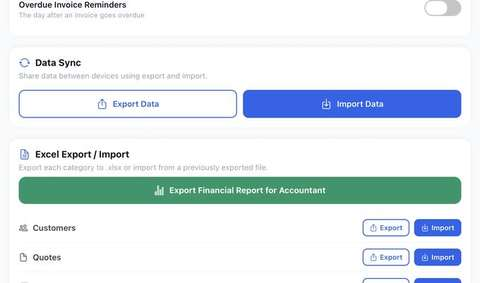
- In Settings, Export Data bundles every customer, job, quote, invoice, item, your logo, and all your photos into a single backup file. Import Data reads that file back in, either merging it with what’s already there or replacing everything on the device.
- Prefer spreadsheets? The Excel Export section lets you export or import Customers, Quotes, Invoices, Orders, and your Items catalog individually as .xlsx files, plus a one-tap Financial Report built for handing to your accountant.
- A full backup is sized for roughly 2 years of active use (about 4,000 photos and 2,000 documents, 8GB total). A backup that would exceed that size is rejected outright rather than risking a failed, half-imported restore.
Saving Time with Note Templates
If you type the same notes over and over, save them once.
- In Settings, add a note template, anything from payment terms to a standard scope note, and it’s saved for reuse.
- From any quote, job, or invoice, tap Insert Template to drop a saved note in instantly, or create a brand new one on the spot.
- There’s no way to edit a saved template in place — if you spot a typo, delete it and add a corrected version.
Status Colors at a Glance
The colored pill on a Job, Quote, or Invoice always means the same thing wherever you see it.
| Job Status | Meaning |
|---|---|
| Pending | Not yet scheduled (no date/time set) |
| Scheduled | Date and time are set, work hasn’t started |
| In Progress | Actively being worked |
| Completed | Finished — ready to invoice |
| Cancelled | Called off; doesn’t count as a scheduling conflict |
| Quote Status | Meaning |
|---|---|
| Draft | Not yet sent to the customer |
| Sent | Delivered, awaiting a response |
| Accepted | Customer signed, or you marked it accepted |
| Declined | Customer turned it down |
| Expired | Past its expiry date and never accepted |
| Invoice Status | Meaning |
|---|---|
| Draft | Not yet sent |
| Sent | Delivered, awaiting payment |
| Paid | Balance is fully paid off (or covered by a deposit) |
| Overdue | Past due date and not fully paid |
Good to Know
A few behaviors worth knowing about before they surprise you.
- Conversions are one-time use. Convert to Job, Convert to Invoice, and Request Deposit each only work once per source document — delete what they created if you need to redo one.
- Warnings, not blocks. Scheduling a job on top of another one shows a warning but never stops you from saving — sometimes double-booking is exactly what you mean to do.
- Deletes cascade. Deleting a customer takes every one of their jobs, quotes, and invoices with it. There’s no undo on any delete in this app.
- Backups have a size ceiling. A full data backup is capped at roughly 2 years’ worth of active use (about 4,000 photos / 2,000 documents, 8GB total).
- App Lock needs your device’s biometrics set up first. The app can require Face ID, Touch ID, or a fingerprint to open, but it can’t set that up for you — enroll it in your phone’s own Settings app first.
- Notifications are entirely on-device. No internet connection is required for reminders to work, and no data leaves your phone to make them happen.